


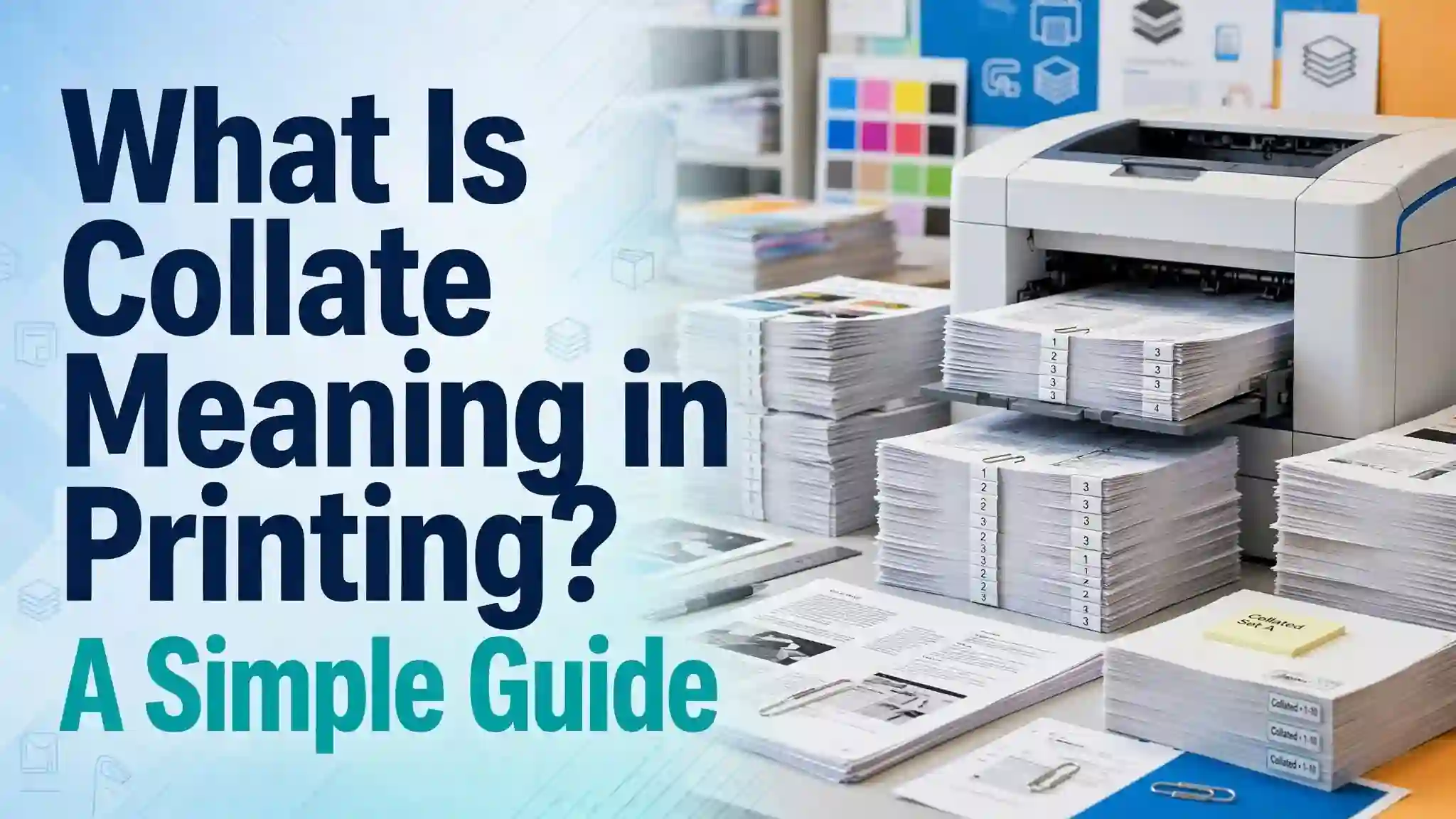
When it comes to printing documents, understanding printer settings can save time and prevent mistakes. The term collate meaning in printing refers to how a printer arranges multiple copies of a document. It determines whether the printer prints complete sets of pages in order or groups the same pages together. This setting becomes useful when printing reports, booklets, school assignments, business documents, or manuals. Many people see the Collate option in their printer settings but do not know what it does. This guide explains its meaning, how it works, when to use it, and how it differs from uncollated printing. You will also learn how to choose the right setting for different printing tasks.
What Does Collate Meaning in Printing?
The collate setting tells a printer how to arrange pages when you print multiple copies of a document. It organizes each copy into the correct page order.
For example, imagine you need three copies of a five-page document. The printer can arrange those pages in two different ways. It can print three complete sets, or it can print all copies of page one, followed by all copies of page two.
The first method is called collated printing. The second method is called uncollated printing.
Collated printing example:
- Copy one: 1, 2, 3, 4, 5
- Copy two: 1, 2, 3, 4, 5
- Copy three: 1, 2, 3, 4, 5
Uncollated printing example:
- Page one: 1, 1, 1
- Page two: 2, 2, 2
- Page three: 3, 3, 3
- Page four: 4, 4, 4
- Page five: 5, 5, 5
Both methods print the same number of pages. The difference lies in how the printer organizes them.
Collated printing works best when you need complete document copies. Uncollated printing works well when you want to group identical pages.
How Does Collated Printing Work?
Collated printing follows the original page sequence. The printer completes one document set before moving to the next copy.
This process makes document handling easier. You do not need to collect separate pages and arrange them by hand.
Step-by-Step Example of Collating
Suppose you have a 10-page report and need four copies. You select the Collate option in your printer settings.
The printer follows this sequence:
- First set: Pages 1 through 10
- Second set: Pages 1 through 10
- Third set: Pages 1 through 10
- Fourth set: Pages 1 through 10
The printer completes each set in order. You receive four ready-to-use reports.
What Happens When You Turn Off Collate?
When you turn off the Collate option, the printer groups matching pages together.
For the same 10-page report, it prints all four copies of page one first. It then prints four copies of page two. It continues until it finishes page ten.
You must collect the pages and arrange them into four complete reports yourself.
Why Does the Printer Follow This Order?
The printer uses the document’s page sequence and copy settings to organize the print job. Its software controls the order in which pages reach the output tray.
Some printers use internal memory or software processing to manage this task. The exact process depends on the printer model, driver, and document settings.
Collate Meaning in Printing vs. Uncollated Printing
Collated and uncollated printing serve different purposes. Both options help users manage multiple copies, but they produce different page arrangements.
Understanding the difference helps you select the right setting before starting a large print job.
Main Differences Between Collated and Uncollated Printing
| Feature | Collated Printing | Uncollated Printing |
| Page order | Complete sets | Matching pages grouped together |
| Organization | Automatic | Often requires manual sorting |
| Best for | Reports and booklets | Forms and identical pages |
| Handling | Easy to distribute | Requires extra arrangement |
| Multiple copies | Printed as full sets | Printed in page groups |
Advantages of Collated Printing
Collated printing offers several benefits for personal, educational, and business tasks.
Easy document organization: Each copy comes out in the correct order. You can pick up a complete document without sorting individual pages.
Saves preparation time: You do not need to arrange loose pages after printing. This helps when you have many copies to prepare.
Reduces sorting mistakes: Manual sorting can cause missing pages or incorrect sequences. Collating reduces this risk.
Useful for professional work: Businesses often print proposals, meeting documents, reports, and training materials. Collated sets look organized and are easier to distribute.
Advantages of Uncollated Printing
Uncollated printing also has useful benefits in certain situations.
Better for identical pages: You can print many copies of one form or notice without arranging complete document sets.
Useful for group activities: Teachers may need several copies of the same worksheet page. Uncollated printing makes this simple.
Flexible for manual assembly: Some printing tasks require users to combine pages in a specific way later.
Helpful for separate page distribution: Offices sometimes need to distribute one particular page to many people.
Which Option Should You Choose?
Choose collated printing when you need complete documents in page order. Choose uncollated printing when you need matching pages grouped together.
Your choice depends on the purpose of the print job, the number of pages, and how you plan to distribute the documents.
How to Use the Collate Option on a Printer
Most modern printers provide a Collate option through the print settings. You can usually find it in the print window of your computer or document application.
The exact location may vary between devices and software.
How to Collate Documents on Windows
Windows users can select the Collate option before sending a document to the printer.
Follow these steps:
- Open the document you want to print.
- Press Ctrl + P on your keyboard.
- Select your printer.
- Find the Copies section.
- Enter the number of copies you need.
- Look for the Collate checkbox or option.
- Turn it on.
- Review the print preview.
- Click Print.
Your printer should produce complete document sets in the correct order.
How to Collate Documents on Mac
Mac users can also arrange multiple copies through the print dialog.
Follow these steps:
- Open your document.
- Select File from the menu.
- Click Print.
- Choose the correct printer.
- Enter the number of copies.
- Find the Collate option in the print settings.
- Enable it if available.
- Check your settings.
- Click Print.
Some Mac applications place this setting under a printer-specific menu. You may need to expand the print dialog to see additional options.
How to Collate in Microsoft Word
Microsoft Word offers printing controls that help users organize multiple document copies.
To use the option:
- Open your Word document.
- Click File.
- Select Print.
- Enter the required number of copies.
- Find the Collated or Uncollated option.
- Select Collated.
- Check the preview.
- Click Print.
Word may display small icons showing the page order. These icons help you understand how the printer will arrange your copies.
How to Collate a PDF Document
PDF applications also support collated printing on many devices.
Open your PDF file and access the print menu. Select your printer and enter the number of copies. Look for the Collate option in the print settings.
Enable it before printing.
If the PDF application does not show this option, check your printer driver settings. Some devices manage collating through their own software.
Practical Uses of Collated Printing
Collated printing is useful in many everyday situations. It helps people prepare complete documents without spending extra time sorting pages.
The following examples show where this feature can make a difference.
Business Reports and Presentations
Businesses often print reports with several pages. Employees may need separate copies for managers, clients, or team members.
Collated printing keeps each report together. Every person receives the same page sequence.
For example, a company may print eight copies of a 15-page financial report. The printer creates eight complete sets instead of grouping all copies of each page.
School Assignments and Study Materials
Students and teachers often print multi-page documents. These may include assignments, revision notes, reading materials, and worksheets.
Collating helps teachers prepare complete handouts for students. It also helps students print multiple copies of study notes.
Manuals and Instruction Guides
Instruction manuals usually contain information in a specific order. Readers need the correct pages to understand each step.
Collated printing keeps the instructions organized. It makes the printed manual easier to read and use.
Office Meetings and Training Sessions
Meeting organizers often prepare agendas, presentations, and training documents.
They can use collated printing to create separate packets for attendees. Each packet contains the same information in the same order.
Booklets and Multi-Page Documents
People sometimes print booklets or small guides at home or in the office.
Collate Meaning in Printing for Different Printers
The Collate option works in a similar way across many printer types. However, the available features can vary by model.
Some printers handle collating through their internal software. Others depend on the computer or application that sends the print job.
Inkjet Printers
Inkjet printers use liquid ink to produce text and images on paper.
Many home and small-office inkjet printers support collated printing through their print settings.
This feature helps users print school assignments, personal documents, and small reports. The printer arranges each copy in page order when the option is enabled.
Laser Printers
Laser printers use toner and heat to produce printed pages.
Many office laser printers support collating. Some business models also include finishing features such as stapling, hole punching, and sorting.
These features can make large print jobs easier to manage.
Multifunction Printers
Multifunction printers combine printing, scanning, copying, and sometimes faxing.
Many models offer collating for both computer print jobs and photocopying tasks.
For example, you can place a multi-page document in the automatic document feeder and request several collated copies. A supported machine can produce complete sets without requiring you to rearrange the pages manually.
Network Printers
Network printers serve multiple computers and users.
They may receive several print jobs at the same time. Collating helps organize the pages within each supported print job.
The printer driver and application settings determine how the document gets arranged.
Common Mistakes When Using the Collate Setting
The Collate option is simple, but users sometimes misunderstand how it works. A few common mistakes can lead to poorly organized print jobs.
Confusing Collate With Double-Sided Printing
Collating and double-sided printing are different features.
Collating controls the order of multiple document copies. Double-sided printing places content on both sides of a sheet of paper.
You can use both settings together.
For example, you can print three collated copies of a 20-page report with double-sided printing enabled. The printer arranges each report in order and uses both sides of the paper where supported.
Assuming Collate Always Means Stapling
Collating does not automatically staple pages together.
It only arranges printed pages into complete sets. Some advanced office printers offer automatic stapling as a separate finishing option.
You must enable stapling separately if your printer supports it.
Forgetting to Check the Number of Copies
The Collate option does not decide how many copies you need.
You must enter the correct number in the Copies field. If you request five copies, the printer will arrange five sets when collating is enabled.
Selecting the Wrong Page Range
A printer follows the page range you select.
If you choose pages 1–5 from a 10-page document, the printer will collate only those selected pages. It will not automatically include the remaining pages.
Always check the print preview before starting a large job.
Ignoring Printer Limitations
Not every printer supports hardware-based collating. Some devices rely on the computer to organize the pages before sending them to the printer.
Large documents may also require more memory or processing time.
Tips for Better Collated Printing Results
A few simple habits can improve your printing experience. They can also help prevent wasted paper, ink, and time.
Check the Print Preview
Always review your document before printing. Confirm the page sequence, margins, layout, and number of copies.
A quick preview can help you identify missing pages or formatting problems.
Select the Correct Paper Size
Choose the right paper size for your document. Most everyday office documents use A4 or Letter paper, depending on the region and workplace.
Incorrect paper settings can affect the layout and printing results.
Test Large Print Jobs
If you need dozens of copies, print one test set first.
Check that every page appears in the correct order. Make sure the text and images look clear.
This simple step can prevent waste during large print jobs.
Use Duplex Printing When Appropriate
Duplex printing places content on both sides of a sheet.
It can reduce paper use for long reports and manuals. Combine it with collating when you need several complete copies.
Check whether your printer supports automatic duplex printing. Some models require you to turn the pages manually.
Keep Printer Drivers Updated
Printer drivers help your computer communicate with the printer.
Outdated drivers may cause missing options or unexpected print behavior. Check the manufacturer’s website for supported driver updates when you experience problems.
Troubleshooting Collate Printing Problems
Sometimes a printer does not arrange pages as expected. The problem may come from the software, printer driver, or print settings.
These simple checks can help you find the cause.
Printer Prints All Copies of One Page Together
This usually happens when the Collate option is turned off.
Open the print dialog and check the Copies section. Enable Collate before printing again.
Collate Option Is Missing
Some applications do not display a Collate setting in the main print window.
Try opening the printer properties or advanced settings. You can also check the printer manufacturer’s software.
The option may depend on the printer model and driver.
Pages Come Out in the Wrong Order
Check the reverse-page-order setting. Some applications offer an option to print the last page first.
Also check whether the document itself has the correct page sequence.
Printer Stops During a Large Job
Large print jobs can use significant computer or printer resources.
Try printing fewer copies at a time. Close unnecessary applications and check the printer’s memory or queue if the problem continues.
Frequently Asked Questions
These answers explain common questions about printer collating, page arrangement, and document organization.
What Does Collate Mean When Printing Multiple Copies?
Collate means the printer arranges each copy as a complete document in the correct page order. For example, three copies of a five-page file come out as three separate sets of pages 1 through 5.
Should I Turn Collate On or Off?
Turn Collate on when you need complete document sets. Turn it off when you want all copies of the same page grouped together. Your printing purpose determines the best option.
Does Collate Mean Double-Sided Printing?
No. Collating controls page order across multiple copies. Double-sided printing controls whether the printer uses both sides of a sheet. You can enable both features at the same time.
Does Collating Save Paper?
Collating does not directly reduce paper use. It changes the order of printed pages. You can save paper by combining collating with duplex printing or by adjusting your document layout.
Can I Collate a PDF File?
Yes. Many PDF applications and printer drivers support collated printing. Open the print settings, enter the number of copies, and enable Collate if the option appears.
Do All Printers Support Collated Printing?
No. Support depends on the printer model, driver, and application. Many modern printers offer this feature, but some basic devices may rely on computer software to arrange the pages.
Final Thoughts
Understanding the collate meaning in printing makes everyday printing tasks easier. This setting controls how a printer arranges multiple copies of a document. It can produce complete sets in the correct page order or group identical pages together when you turn it off.Collated printing works best for reports, manuals, assignments, presentations, and meeting documents.
It saves sorting time and helps prevent page arrangement mistakes. Uncollated printing is useful when you need several copies of the same page.Before starting a print job, check the number of copies, page range, and Collate option. Review the print preview to avoid unnecessary errors. You can also combine collating with double-sided printing when you want to reduce paper use.
